Before setting up your first Agent in Agentforce, ensure that Einstein is set up in Salesforce. To do this:
- Navigate to Setup > enter Einstein Setup in the Quick Find Box > Click Einstein Setup.
- Click the Turn on Einstein toggle to "On" and then refresh your browser.
- Enter Agents in the Quick Find Box > Click the Einstein Copilot for Salesforce toggle to On.
2. Create Your Agent
- Navigate to Setup > enter Agents in the Quick Find Box > click New Agent.
- Select your Agent Type (Agentforce Service Agent) > click Next.
- Confirm the topics (these are added by default) > click Next.
- Change the Name & ensure that the API Name updates.
- Enter the details for Company > Select an Agent User from the list of available users or Create a new one > Click Next.
- Select your Data Library if you have any else skip > Click Create.
3. Custom Topics, Actions & Instructions
Use Topics & Actions to customize Agent Builder. Topics are categories of tasks the AI agent handles, while Actions are the queries the AI Agent uses to complete those tasks within the designated topics. Topics & Actions help drive us to our desired outcome, setting the context and providing guardrails for our Agent.
3.2. Instructions
After configuring our Topics and Actions, they work together via Instructions. Instructions are the guidelines within each topic that direct how an Agent should handle specific tasks. Instructions provide context & structure, guiding our A.I. Agent on how to respond to different types of inputs within Topics.
4. Sharing Rules & Permission Sets
4.1. Sharing Rules
In Setup, type Sharing Settings, and click to open the page. Scroll down to add sharing rules.
4.1.1. Account Sharing Rule
- Rule Name: “Payments2Us Agent All Accounts with Service User”
- Select “Based on criteria.”
- Criteria “Where Account Name Not Equal AccountNameThatDoesNotExist”
- Share with “Select the public Group, Agent User Group.”
Access Level Account: "Read Only", Contact: “Read Only”, Case: “Read Only”, Opportunities: “Read/Write”

4.1.2. Contact Sharing Rule
This section is ONLY VALID if your Contact sharing settings are NOT set to Controlled by Parent. E.g. Contact sharing is private.
If Contact Share is Controlled by Parent, then you can skip this step.
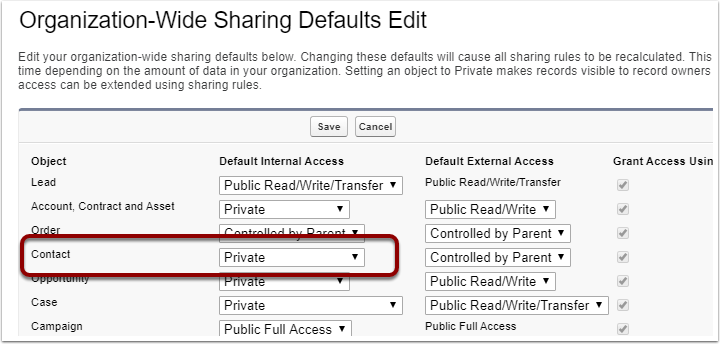
- Rule Name: “Payments2Us Agent All Contacts with Service User”
- Select “Based on criteria.”
- Criteria “Where Last Name Not Equal ContactNameThatDoesNotExist”
- Share with “Select the public Group, Agent User Group.” Access Level Contact: "Read Only"
4.1.3. Opportunity Sharing Rule
This section is ONLY VALID if your Opportunity sharing settings are NOT set to Controlled by Parent. E.g. Opportunity sharing is private.
If Opportunity Share is Controlled by Parent, then you can skip this step.
- Rule Name: “Payments2Us Agent All Opportunities with Service User”
- Select “Based on criteria.”
- Criteria “Where Opportunity Name Not Equal OpportunityNameThatDoesNotExist”
- Share with “Select the public Group, Agent User Group.” Access Level Opportunity: “Read Only”
4.1.4. Campaign Sharing Rule
- Rule Name: “Payments2Us Agent All Active Campaigns with Service User”
- Select “Based on criteria.”
- Criteria "Active equals true."
- Share with “Select the public Group, Agent User Group.” Access Level Campaign: “Read Only”
4.1.5. Merchant Facility Sharing Rule
- Rule Name: “Payments2Us Agent All Active Merchant Facilities with Service User”
- Select “Based on criteria.”
- Criteria "Active equals true."
- Share with “Select the public Group, Agent User Group.” Access Level Merchant Facility: “Read Only”
4.1.6. Payment Txn Sharing Rule
- Rule Name: “Payments2Us Agent All MC Payment Txn with Service User”
- Select “Based on criteria.”
- Criteria "Status equals Matching Complete."
- Share with “Select the public Group, Agent User Group.” Access Level Payment Txn: “Read Only”
4.2. Permission Set
Payments2US Service Agent User permission set needs to be assigned to the Service user.
4.3. Seperate Permission
Extra permissions are required on the Task Record through the Permission set or Profile in the customer Org.
- Task object level permission Read/Create.