1. Adding or Removing fields on Manual Payments
You can add, remove of move fields (custom and standard) on Manual Payments by updating the Field Set.
Note, some fields or field labels will be shown based on settings on the "Payment Form" entered. These include:
- Enable Payment Options
- Payment Option Label
- Membership Label
2. Locate the Fieldset to update
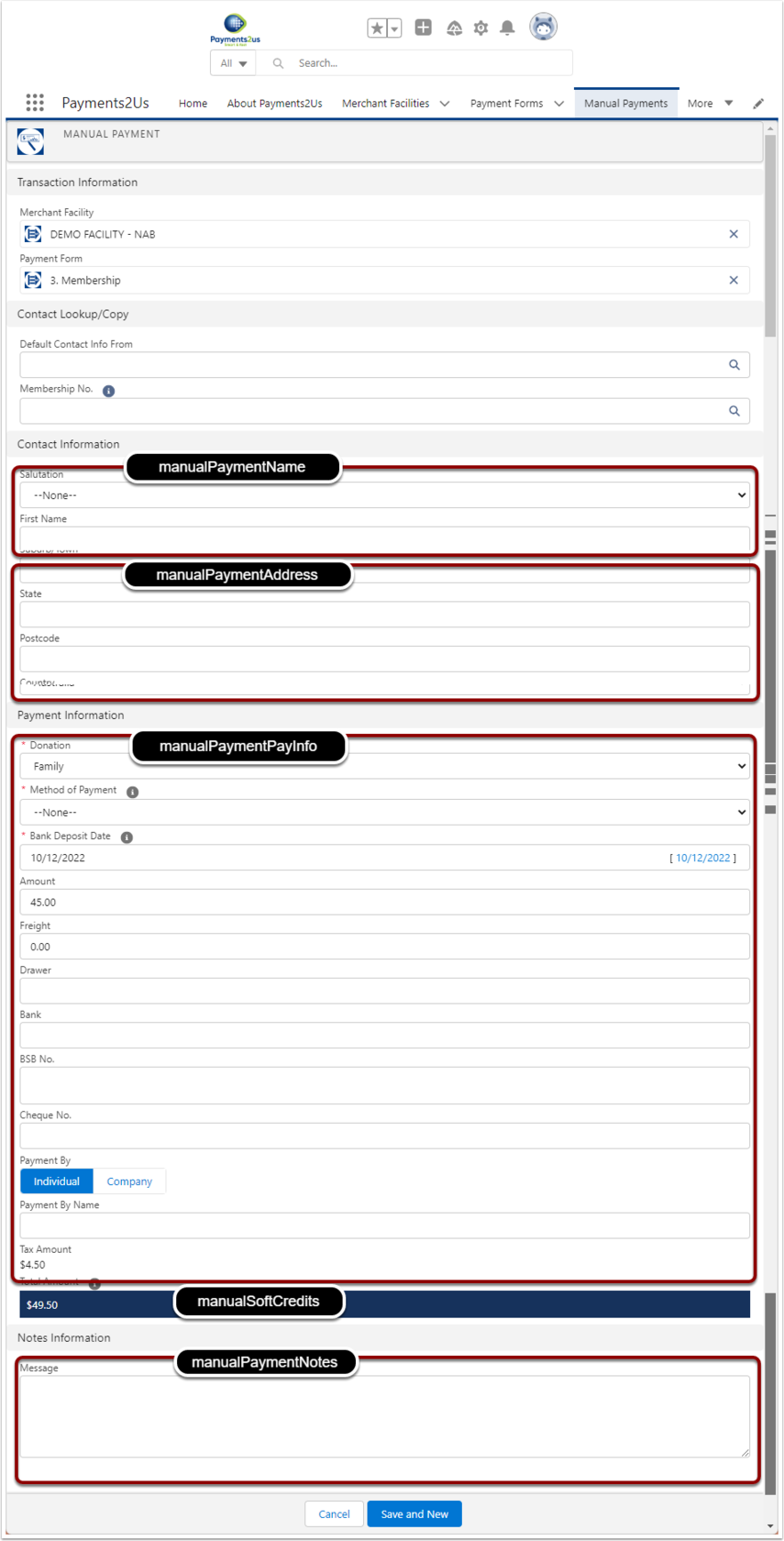
Different Sections of the Manual Payment Entry use different Field Sets to control which fields are shown.
Use the screenshot below to locate the Field Set you wish to update. It will be one or more of:
- manualPaymentName
- manualPaymentAddress
- manualPaymentPayInfo
- manualSoftCredits
- manualPaymentNotes
Note, the section for "Soft Credits" is not shown in the screenshot below. The Field set for this is:
3. Update the FieldSet on the Payment Txn Object
- Click on the Setup cog (Top right hand corner)
- Click on the "Object Manager" tab.
- Search "Payment Txn"
- Click into the Payment Txn Object

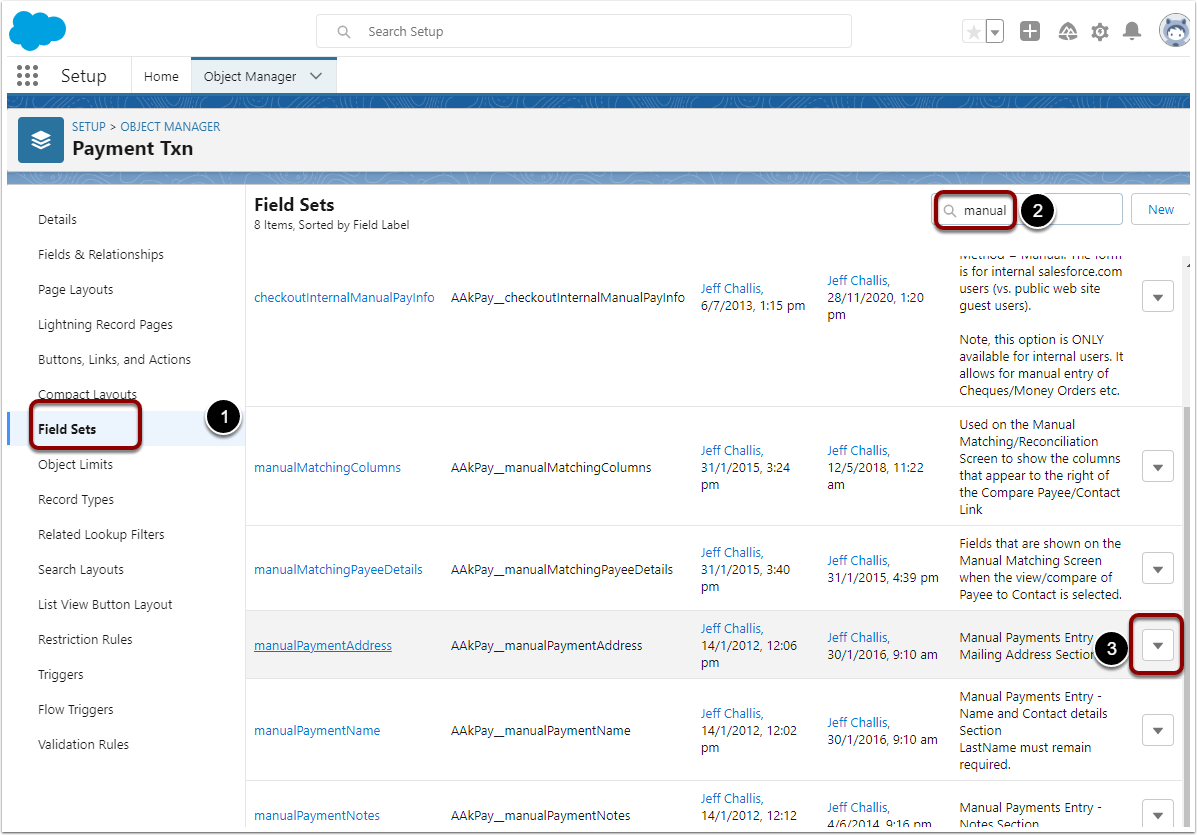
3.2. Select FieldSets Tab and Locate Field Set
- Select the "Field Sets" tab
- Search for "manual"
- Click Edit from the dropdown option for the Field Set you wish to update.
3.3. Add/move/remove field(s)
- Drag new fields on the field set
- Move fields up/down or remove
- Save

4. Adding Custom Lookup Fields
Since 11.5 release, Manual Payments fully support custom lookup fields. If your custom lookup field is not fetching records then you need to add comma separated API name of of your custom object in the following custom labels :
- WhiteListedLookupObjects (Add the API name of your lookup object)
- WhiteListedLookupObjectFields (Add the API name of your lookup field)
This ensures the lookup search works correctly on the Manual Payments component.